

No-upload file privacy checklist
Remove personal information from Word, Excel and PDF files—without uploading them.
Use the built-in Office inspector where it fits, then review supported files locally on Windows. Keep the original, prepare a new copy and verify it before sharing.
Windows x64 · v1.5.1 · local processing · no account required · human review still required
The quick answer
Start with the tool already on your computer.
For Word and Excel, Microsoft Office includes Document Inspector. It can find several categories of document properties and hidden content. PDFs need a separate review workflow. Whatever you use, work from a copy and inspect the result yourself.
Run Document Inspector
Open a copy, then use File → Info → Check for Issues → Inspect Document. Review each category before choosing what to remove.
Review every page
Document properties are only one layer. Visible names, email addresses, annotations and page content still need a page-by-page check.
Verify the exported copy
Open the new file, check its properties and scan every page or sheet again. Do not assume one automated pass made it anonymous.
Choose the right route
Built-in inspection or one local review workspace?
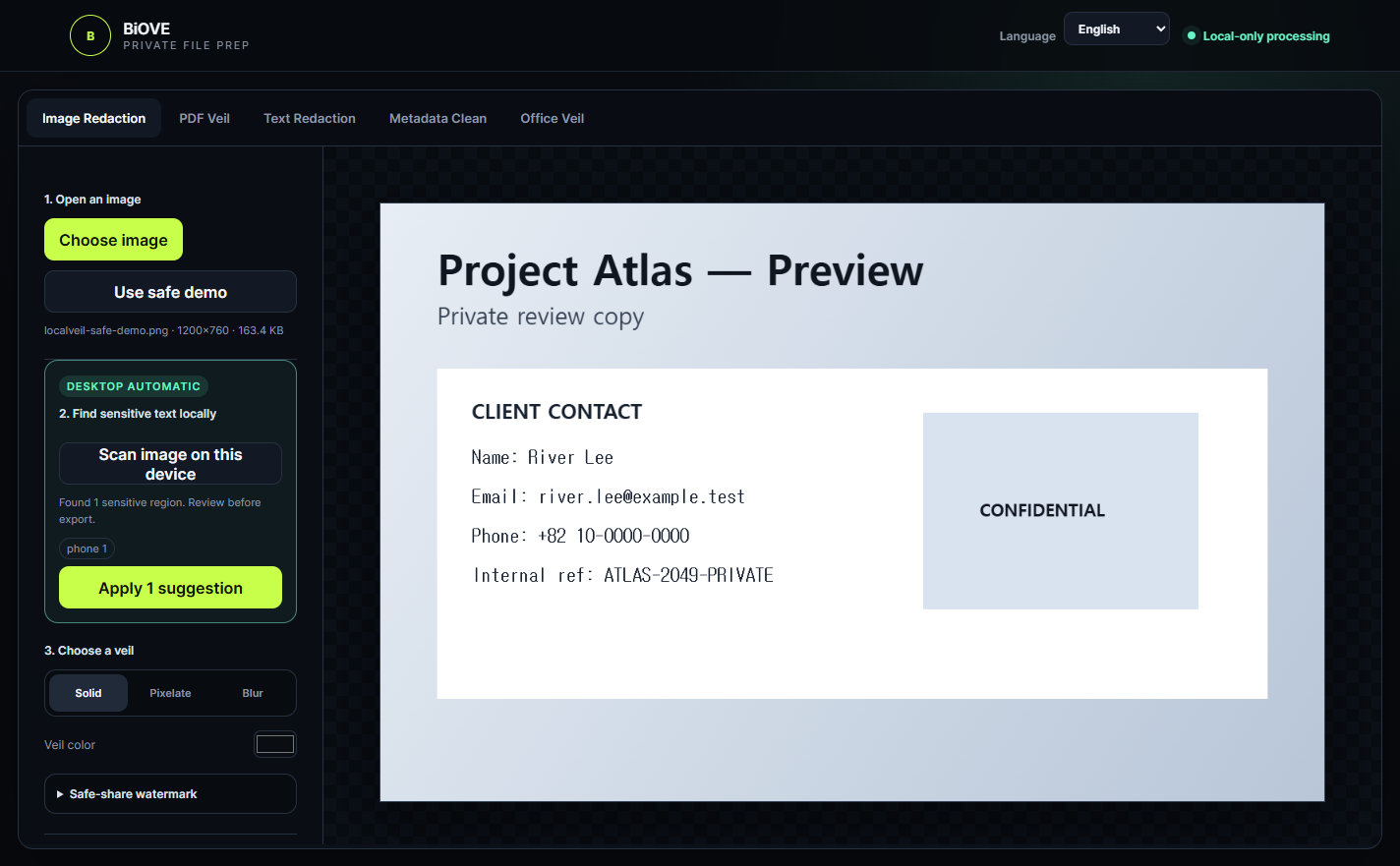
File Mask for AI does not replace Office security tools or guarantee complete anonymisation. It gives Windows users one local workflow for supported images, PDFs, pasted text, DOCX and XLSX files.
| Need | Office built-in route | BiOVE File Mask for AI |
|---|---|---|
| Check Word or Excel document properties | Use Document Inspector in the desktop Office app. | Review supported DOCX/XLSX readable content and metadata locally. |
| Place masks on PDF pages | Not handled by Word or Excel Document Inspector. | Review pages, place masks and export a new prepared PDF. |
| Prepare images and pasted text too | Requires separate tools and steps. | Use the same local Windows workspace for supported formats. |
| Keep the original unchanged | Save a duplicate before inspecting or removing information. | The original is not modified; export creates a new copy. |
A safer sharing habit
Three checks before the file leaves your device.
No detector catches everything. Treat automated findings as prompts for review, not proof that a file is safe.
Open a copy
Keep the original intact and select the supported file from your own Windows device.
Review and prepare
Inspect readable content and metadata, add masks where needed and export a new file.
Verify manually
Open the export, check properties, pages, sheets and masks, then share only the verified copy.
Know the boundary
What the app does—and what it does not promise.
Clear boundaries matter more than a false “one-click privacy” claim.
File Mask for AI v1.5.1
- Runs supported preparation workflows locally on Windows.
- Reviews images, PDFs, pasted text, DOCX and XLSX.
- Keeps originals unchanged and creates a new export.
- Offers a free Preview with permanently watermarked image export.
Still your responsibility
- Check every finding, page, sheet, mask and output.
- Follow your organisation’s retention and security policy.
- Do not treat the app as legal advice, certification or guaranteed anonymisation.
- Use the Office inspector or specialist tools when a file needs checks beyond the app’s verified scope.
Does the free Preview clean Word, Excel and PDF files?
No. The Preview lets you test the workflow and permanently watermarked PNG/JPG export. Clean, PDF, Office, text and batch export remain locked until a paid one-time licence is selected.
Are my files uploaded to BiOVE?
No file upload is required for the app’s preparation workflows. Files are selected from the Windows device in front of you. The app does not require a cloud account, remote font or AI API for file processing.
Does removing metadata make a document anonymous?
Not by itself. Visible names, comments, headers, hidden sheets, annotations and other context can still identify people or organisations. Inspect the exported copy manually before sharing.
Does the app modify the original?
No. The original remains unchanged. A new prepared file is created only when you export.